
Client & Agent Portal
Request work, manage farms and maps, choose recipients and follow job progress.
Open portal →
Open the right app for your role and find practical instructions for the complete job workflow, from a client request through to field records, pricing and invoicing.
Each app uses the same current job record. Authorised operational apps remain protected by staff login or a private six-digit PIN.
Request work, manage farms and maps, choose recipients and follow job progress.
Open portal →Review requests, produce rapid automated time and cost estimates, schedule crews, monitor work, complete records and invoice.
Open Office →Use live maps, weather, mixer load counts, maintenance warnings and pilot records.
Open Pilot →Calculate products and containers, time loads, share live mixing and reconcile stock.
Open Mixer →Track aircraft hours, services, engine runs, defects and fuel-flow calibrations.
Open Maintenance →Recent changes across the apps. Each one is also covered in the guides below.
Updated 6 October 2026 · Swipe sideways for more →
Tap an airstrip name to see its key details, plus notes and photos added by pilots, mixers and the office. Anything you add is there for the next crew.
Tap an aircraft registration to see the settings that work for each product: rate, setting, swath and whether it's pressurised, plus notes such as hopper door setup. Mixers can look up any aircraft from Aircraft settings.
Starting a flight fetches the weather automatically and saves it with the flight. Fetch Weather gives a fresh reading any time: modelled wind, gusts, temperature, humidity and Delta T from Open-Meteo. It can also fetch again on your new loads, and the latest reading is shared with the office.
Tick Record weather each load and the conditions are saved as each load is recorded. The office sees the full load weather history on the job.
Delta T is now worked out from the true wet-bulb temperature. Readings saved before 5 October 2026 used a rough rule and can read high in cool or humid weather.
Start time and tacho for each flight sit at the top. Tap a flight to correct any of its details, including weather. Products and the load plan come next, with the rarely used controls further down.
The working screen is coloured by job type: herbicide red, insecticide yellow, other spraying blue, bait purple and spreading green. Insecticide is yellow on office screens and printed sheets too.
The planner joins blocks that line up along the runs and chooses the layout with the least flying time. Blocks the office has turned, split or merged stay as set. Portal estimates use exactly the same planner.
Jobs and Pending open quickly, even with many jobs open, and flight plans for big farms are worked out in moments instead of minutes.
The job screen's GST total matches the invoice. Fertiliser invoices no longer print a leftover water rate, and spray load plans round to the nearest half litre per hectare in every app.
After five wrong PINs within 15 minutes, PIN sign-in from that connection pauses for 15 minutes. Anyone already signed in is not affected.
Every record is archived each night, and a separate, independent copy is made every morning.
Short walkthroughs of the client and agent portal and the Office, Pilot and Mixer apps, with commentary. Tap a clip to play it with sound. Swipe sideways for more →
The farmer's dashboard with every job and its status, booking a new job in three steps (date, paddocks picked off the farm map, product and rate), an instant price estimate, submitting it to the office, and the completion advice and weather for a finished job. 52 seconds.
An agronomist's own login: every client who has shared a farm, all their clients' jobs by the day, booking a job on a client's behalf on that client's shared farm, choosing whether the agent's business or the farmer is invoiced, and the booking marked as submitted by the agronomist. 57 seconds.
The farmer (or their agent) edits a scheduled job: a new date and an extra paddock, with the hectares and product totals following. Saving sends it back to the office to re-check, with a list of exactly what changed. A job already in the air is locked. 35 seconds.
The day at a glance, a new request from the client portal, the automatic time and cost estimate with the flight plan, and accepting the job. 33 seconds.
Unscheduled jobs on their preferred day, choosing the strip, pilot, plane and mixer, the load plan building itself, and publishing the day to the field apps. 37 seconds.
Every job in the air with its loads, hectares and live finish time, plus the pilot's latest weather and Delta T. As loads go in, the finish time and the next job's start time on the day plan update by themselves. 27 seconds.
A finished job with its estimated time against the time actually flown, the check against the booking, the pilot's record with tacho, hectares, droplet size, notes and weather, and the completion records. 30 seconds.
Pricing from the tacho hours actually flown, marking the job priced, reserving its invoice number, the tax invoice ready to print or send, the full AeroOps job record, and the month-end Xero export. 58 seconds.
PIN sign-in, today's published jobs, and the job details: airstrip, aircraft and load plan. 29 seconds.
Paddocks, airstrip and powerlines, the flight plan's runs, and the automatic racetrack selector. 48 seconds.
Maintenance release, start tacho, weather fetched automatically as you start flying, the working screen, Fetch Weather with Delta T, and weather on every load. 47 seconds.
The live loading bar as the mixer loads, Request Fuel for the next load, and stopping and restarting the mixer. 30 seconds.
Strip details, notes and photos from the crew, directions, and the aircraft's settings for each product. 37 seconds.
Today's jobs and planes, airstrip details and directions, the stock check, what goes in each load and from which drum, loading the plane and the return timer. 48 seconds.
Loads sized for each plane's hopper, a second mixer on the same job, a return timer for each plane, and a pilot's fuel request. 41 seconds.
Every job in its colours, the same as the office and pilot app: herbicide red, insecticide yellow. The job screen and a big bar on the white mixing screen say which, and each herbicide or insecticide product is marked, even when a job was booked as plain spraying. 40 seconds.
Recorded on a test copy of AeroOps with made-up farms, pilots, mixers, aircraft and company details. Weather figures, rates and prices are example values.
Updates made to the accepted job flow through to the field apps so the office, pilot and mixer work from the same job details.
A client or agent enters the job, paddocks, products, maps and contacts.
The office accepts the request, confirms details and schedules the work.
The day plan sends current assignments to pilots and mixers.
Mixer loads and pilot sessions record progress against the job.
Pilot records, hectares, notes, weather and products are checked.
The office confirms billing, creates completion records and prepares the invoice.
Create accurate requests and keep farms, maps and recipients ready for future work.
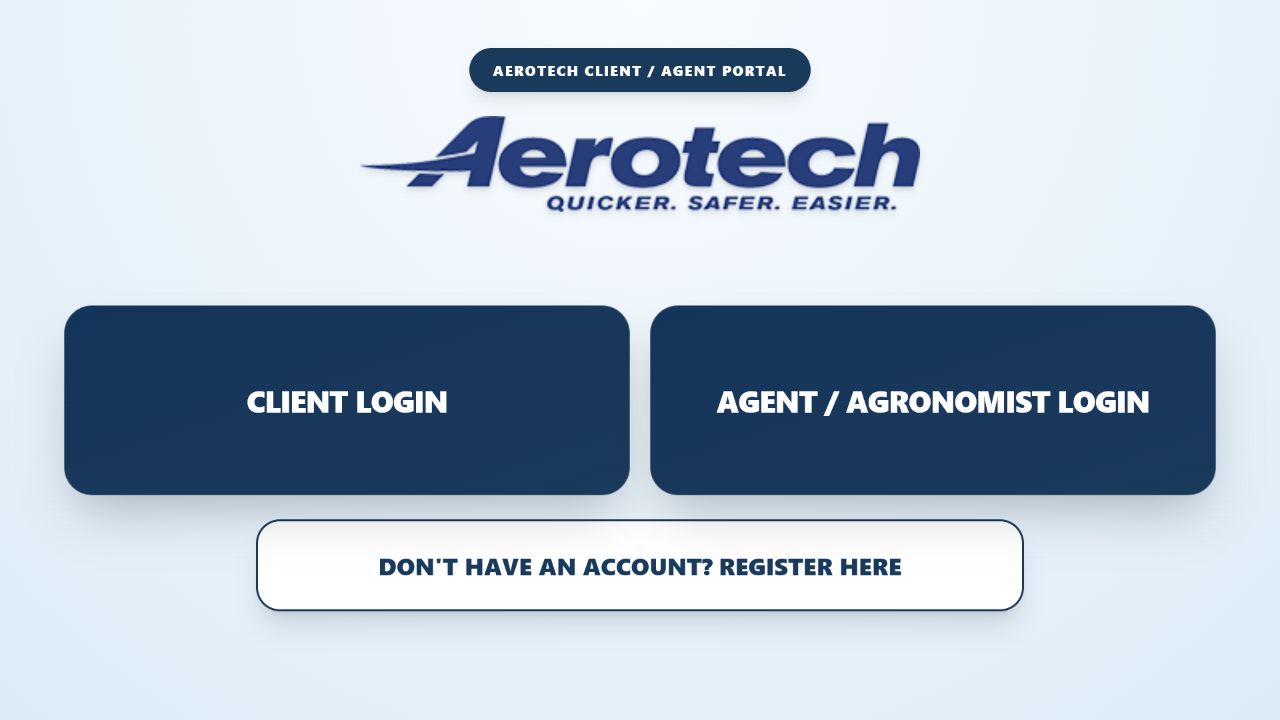
Keep the farm profile accurate first. Job requests can then reuse saved paddocks while still allowing a job-specific map where required.
Invoice recipients and job-completion recipients are separate. Select the correct invoice email and every person who should receive the client completion advice.
Edit the existing request instead of creating a duplicate. The office can review the change before it is published to the field.
An estimate uses the same flight planner as the office: ferry from the nearest suitable airstrip, paddock shapes, runs and spray-off. It is never a booking until you confirm it. Estimated prices are plus GST, and airstrip and other charges may apply.
Run the complete operational day from request review to completion records and invoicing.
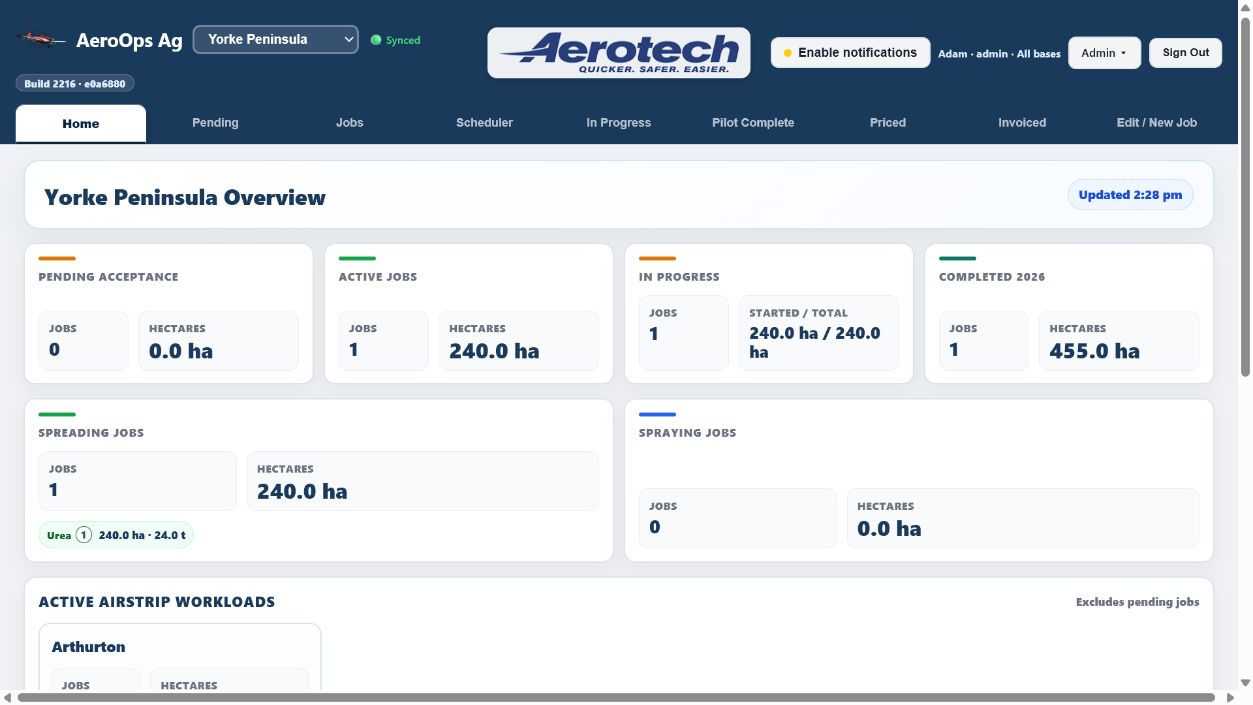
Get an accurate operating prediction within seconds. AeroOps factors in ferry travel to the nearest suitable airstrip, paddock area and shape, application and load requirements, productive flying and dead flying to estimate the job time and cost.
The flight planner groups paddocks into blocks, joins blocks that line up along the runs and picks the layout with the least flying time. Blocks you turn, split or merge stay exactly as you set them. Client portal estimates use the same planner, so both agree.
In Base Setup, the Info button on each airstrip and aircraft row opens the same shared sheet the field apps see. Airstrips carry key details, notes and photos. Aircraft carry the settings for each product (rate, setting, swath and pressurised) plus general notes. Admins and base managers can hide or restore notes and settings.
The job screen shows the latest weather the pilot fetched and, when the pilot records weather each load, the load weather history. Weather comes from Open-Meteo and is modelled, not measured on site.
Drag jobs into the operating order, set the first start time, assign staff and aircraft, then publish. Actual starts and live finish estimates move the active job and help forecast the next start.
Leave each aircraft on the total remaining job unless a deliberate scheduled hectare assignment divides the work. Mixer load allocation then records which pilot and aircraft received each load.
The client completion is a concise customer record. The AeroOps record keeps internal tacho times, flight sessions and mixer detail. Warnings appear when hectares or session totals need checking.
Records default to a recent period for faster opening. Use filters and date ranges when older priced or invoiced jobs are needed.
Both apps use private six-digit PIN access, saved job data and an offline outbox for temporary dropouts.
View the current job, application plan, weather, live mixer progress, airstrip and aircraft info, aircraft warnings and mandatory completion records.
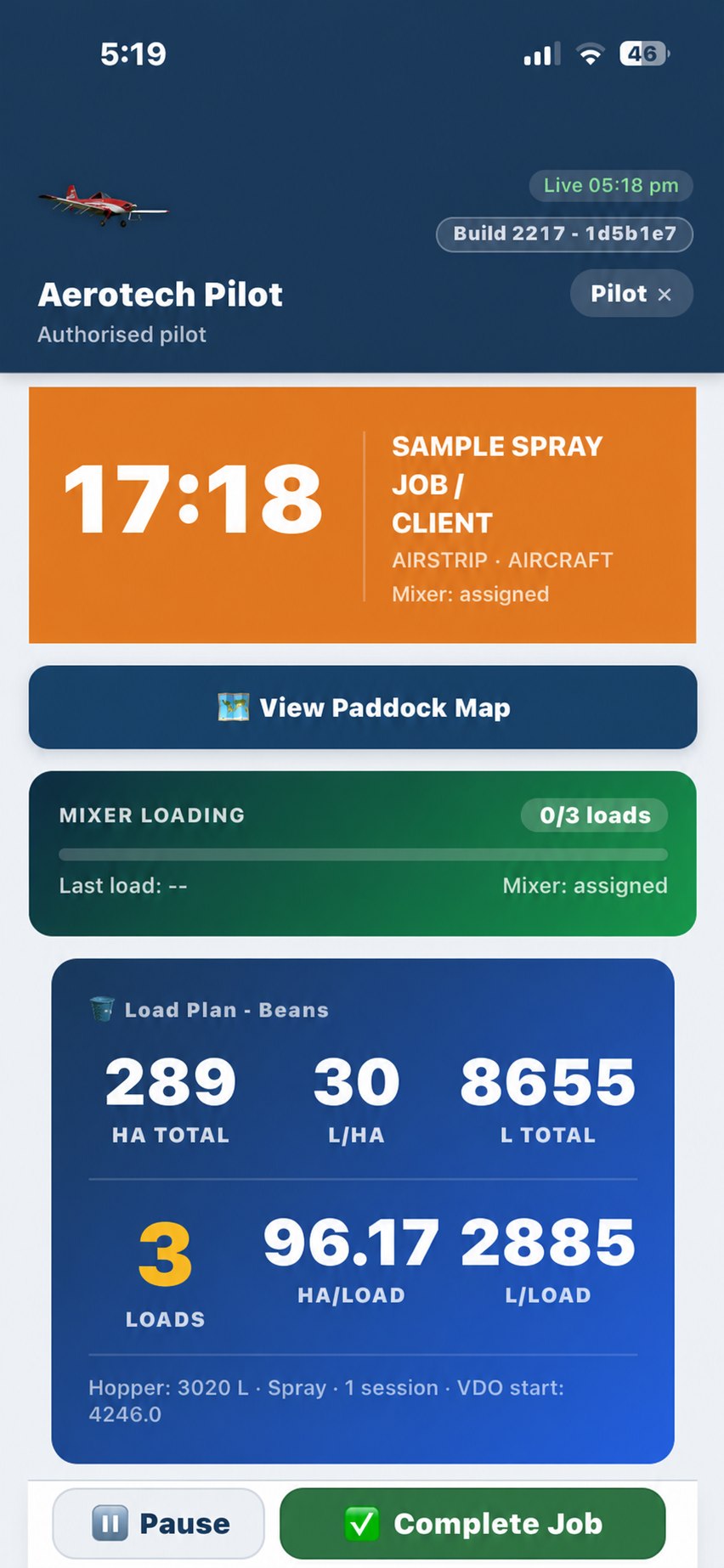
Calculate every product and container, share live mixing across multiple mixers, time loads and reconcile remaining stock.
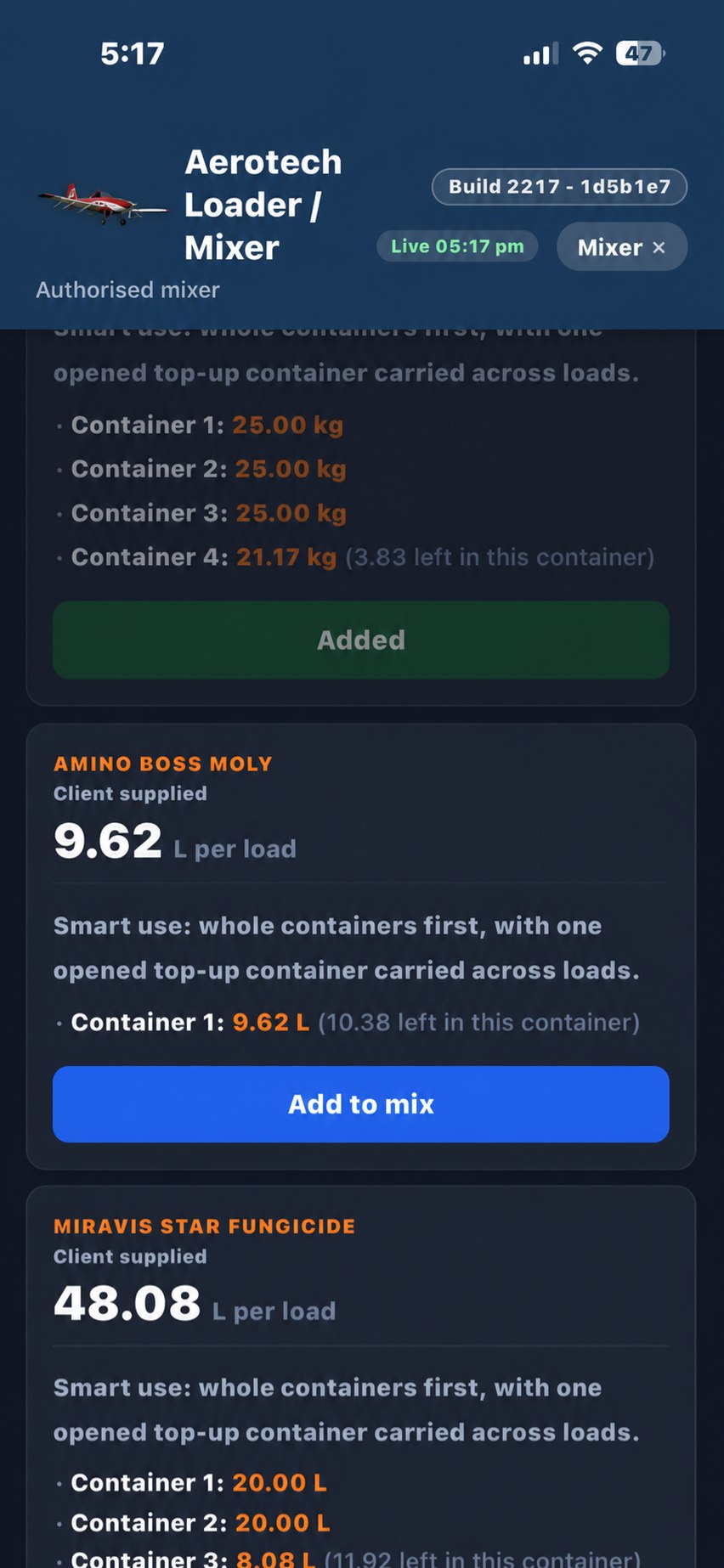
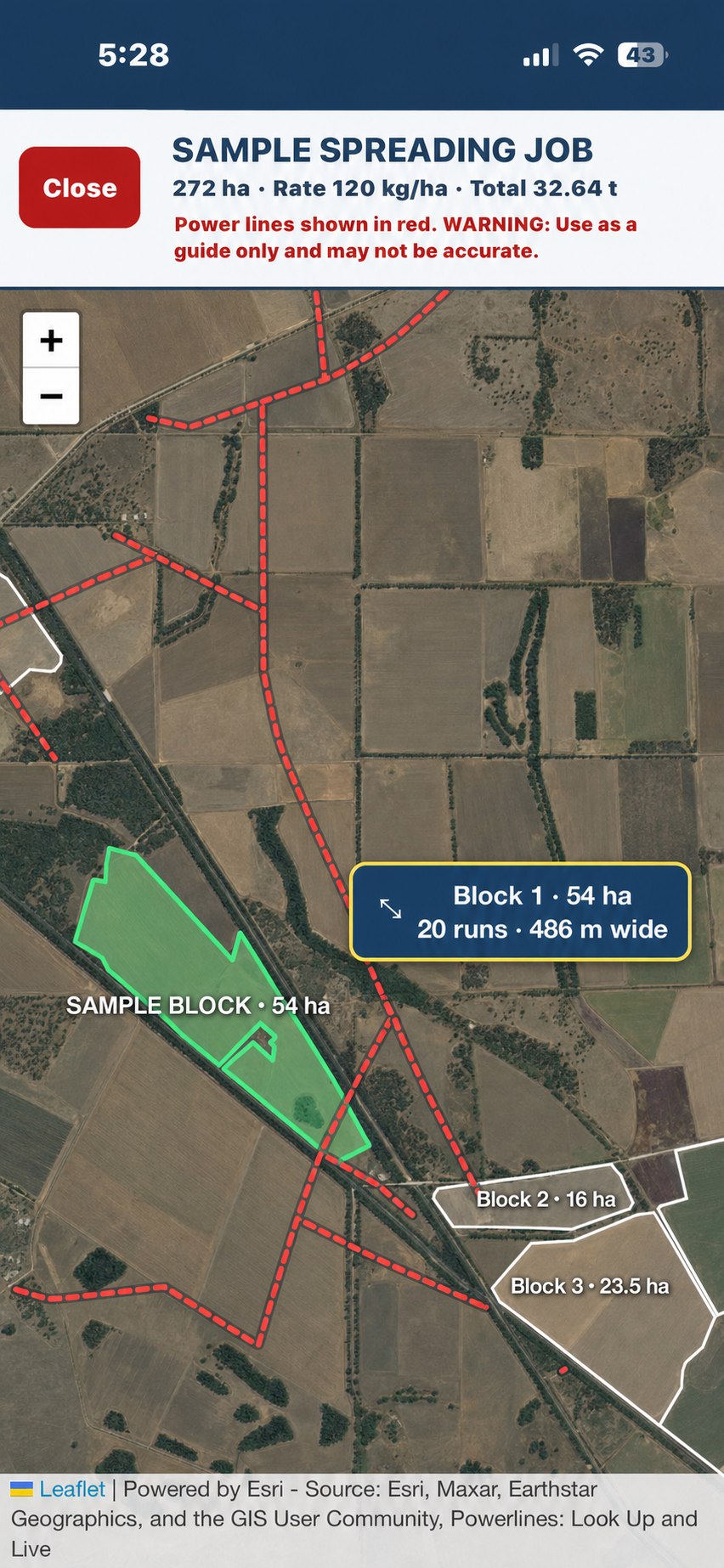
The flying screen keeps the key application information visible while the pilot reviews the job area.
The Pilot map carries the paddock information block and powerline warning. AeroOps can suggest the application direction that produces the fewest runs and show the calculated block width. Fetch Weather gives modelled wind, gusts, temperature, humidity and Delta T for the job from Open-Meteo, using the device location or the airstrip's coordinates.
Tick Record weather each load on the working screen. Conditions are then saved automatically as each load is recorded, and the office can see the full history on the job. Untick it to stop. A warning shows if any load is missing its weather record.
Airstrip and aircraft names show as blue links with an information mark. Airstrips carry key details plus notes and photos from pilots, mixers and the office. Aircraft carry settings by product (rate, setting, swath and pressurised) and notes such as hopper door setup. Pilots and the office can add aircraft settings; mixers can view them.
Each flight's start time and tacho show at the top of the working screen. Tap one to correct its times, tacho, hectares, landings or weather. While a flight is still running, its stop time, hectares and landings stay locked until you finish it.
Pilot load progress follows Mixer load records rather than a separate manual count. Aircraft cards also show upcoming maintenance warnings by remaining time or hours so the pilot sees them before starting work.
Mixer calculations show product required for the job and load, the amount taken from each container, the balance left in each opened container and the remaining stock to reconcile when the job is completed.
Loaded time and active load duration stay visible, with a warning after the normal application time is exceeded. When more than one mixer works on a job, product-added updates and progress are shared live.
The app shell and recent job data are saved for dropouts. Actions queue locally and replay when the connection returns. Keep the app open long enough to show a current synced status before signing out.
Field apps refresh current settings and jobs after login and during live updates. If a job was edited by the office, return to the job list or refresh once connected to pull the latest accepted details.
Use Extra load from the active mixer workflow when the aircraft needs another load. Spreading extra hectares calculate additional product from hectares and the locked job rate.
Keep aircraft status, servicing, engine runs, defects and calibration history together.
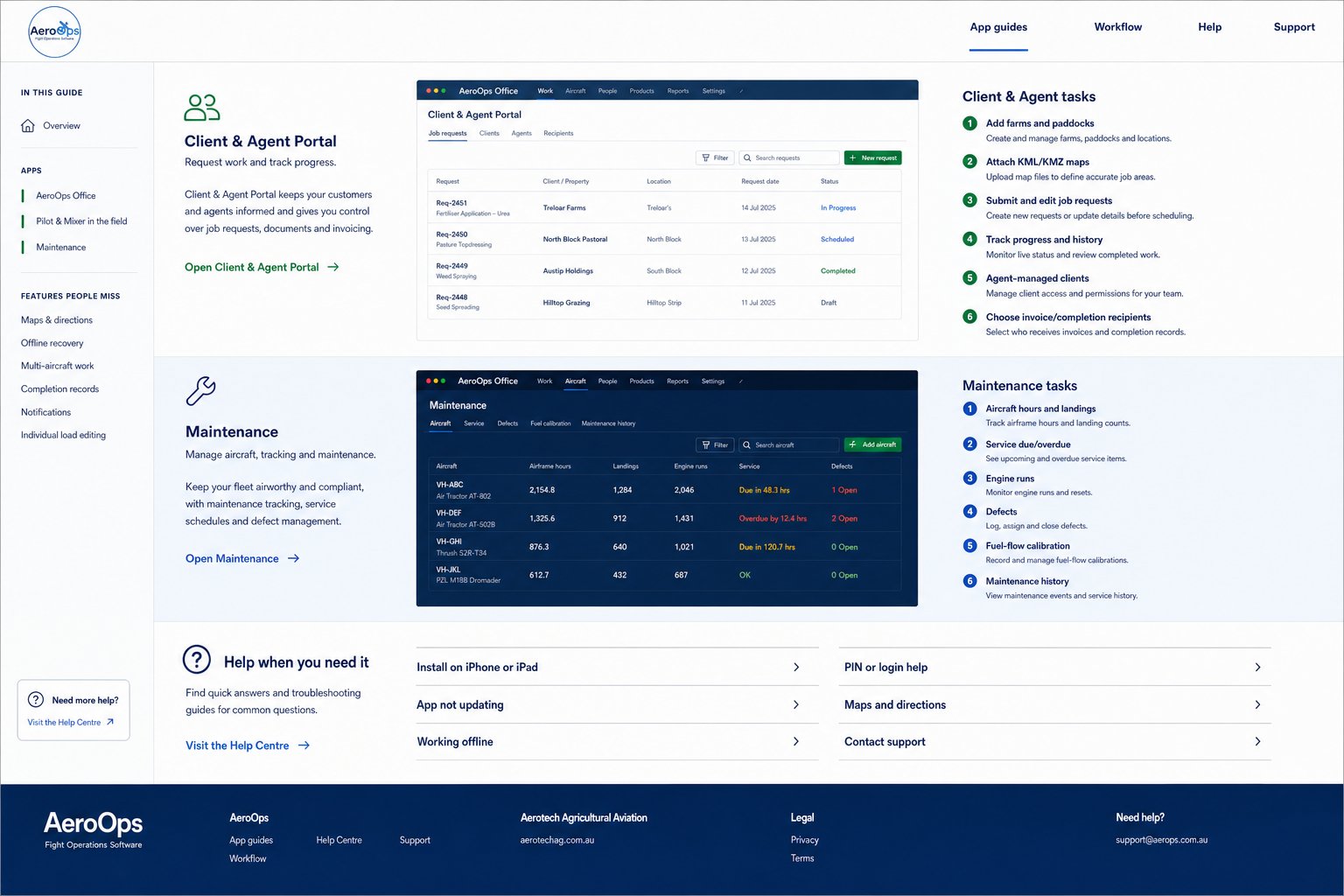
AeroOps has grown well beyond a job list. These are the useful controls that are easy to overlook during a busy day.
View paddock maps and powerlines in Pilot, use the least-runs application direction and block width, and open Google Maps directions to mixer airstrips.
Office users can enable pending-job notifications and see a base-specific pending count on the installed home-screen icon.
Pilots see Mixer load counts, while multiple mixers share product-added updates. Multi-aircraft jobs still separate total and aircraft progress.
Edit or remove the affected mixer load from Load Details instead of undoing unrelated work. Product use and progress recalculate.
Warnings stop obvious hectare or session mistakes before client or internal completion records are sent or printed.
Pilot shows upcoming aircraft maintenance time or hours. Mixer warns when a load exceeds the normal loading duration.
Blue airstrip and aircraft names open shared notes, photos and aircraft settings by product. Add what the next crew should know.
Tick Record weather each load in Pilot and every load gets its own weather record, visible to the office on the job.
Tap a flight's start row at the top of the Pilot working screen to correct its times, tacho, hectares or weather.
Quick answers for the issues most likely to interrupt work in the field or office.
Open the app in Safari, use Share, choose Add to Home Screen, then open the new icon. For Office notifications, allow notifications when prompted and choose the correct base.
Confirm the device is online, close and reopen the app from its home-screen icon, then use the visible refresh/update control if offered. Sign out and back in only after queued field actions show as synced.
Continue from the current job where the app allows it. AeroOps saves recent job data and queues supported field updates. When service returns, leave the app open until its live or synced status is current.
Pilot and Mixer use a private six-digit PIN. Where more than one staff member shares a PIN, select the correct initials. Office, settings and Maintenance use authorised staff login.
If the app says "Too many PIN attempts", five wrong PINs were entered from that connection within 15 minutes. Wait 15 minutes and try again; anyone already signed in is not affected. If it keeps happening, contact the office.
Allow location access for the app, or ask the office to add coordinates for the airstrip. If the app says the weather request limit is reached, wait a few minutes and try again. Weather is modelled by Open-Meteo, not measured on site, so check conditions at the paddock before spraying.
Open the map from the job card or active flying view. Use the visible Close control rather than the browser back button. Airstrip directions open separately in Google Maps.
Do not create a duplicate. Check the current accepted job in Office, then review pilot sessions and mixer Load Details. Correct the affected source record and confirm warning messages before pricing or sending documents.
Flight operations software operated by SULLAIR AG PTY LIMITED.