
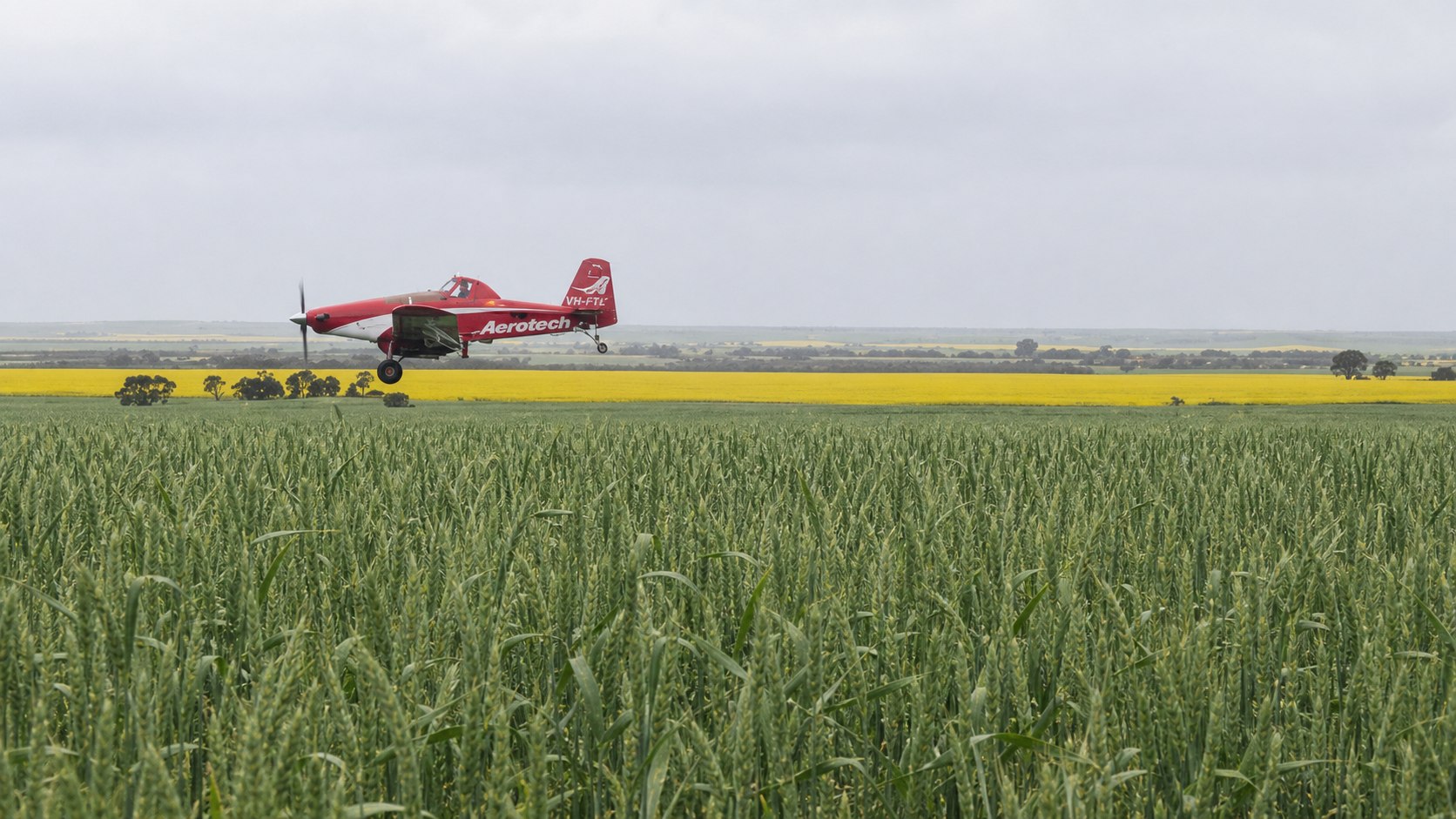
Aerotech agricultural aircraft flying over a crop

AeroOps Guide & App Directory

Open the right app for your role and find practical instructions for the complete job workflow, from a client request through to field records, pricing and invoicing.

Choose the app for your role

Each app uses the same current job record. Authorised operational apps remain protected by staff login or a private six-digit PIN.

Client & Agent Portal

Request work, manage farms and maps, choose recipients and follow job progress.

Open portal →
AeroOps Office

Review requests, produce rapid automated time and cost estimates, schedule crews, monitor work, complete records and invoice.

Open Office →

Pilot

Use live maps, weather, mixer load counts, maintenance warnings and pilot records.

Open Pilot →

Mixer / Loader

Calculate products and containers, time loads, share live mixing and reconcile stock.

Open Mixer →

Maintenance

Track aircraft hours, services, engine runs, defects and fuel-flow calibrations.

Open Maintenance →

How a job moves through AeroOps

Updates made to the accepted job flow through to the field apps so the office, pilot and mixer work from the same job details.

Client request

A client or agent enters the job, paddocks, products, maps and contacts.

Office review

The office accepts the request, confirms details and schedules the work.

Publish

The day plan sends current assignments to pilots and mixers.

Field work

Mixer loads and pilot sessions record progress against the job.

Completion

Pilot records, hectares, notes, weather and products are checked.

Price & invoice

The office confirms billing, creates completion records and prepares the invoice.

Client & Agent Portal

Create accurate requests and keep farms, maps and recipients ready for future work.
Open portal
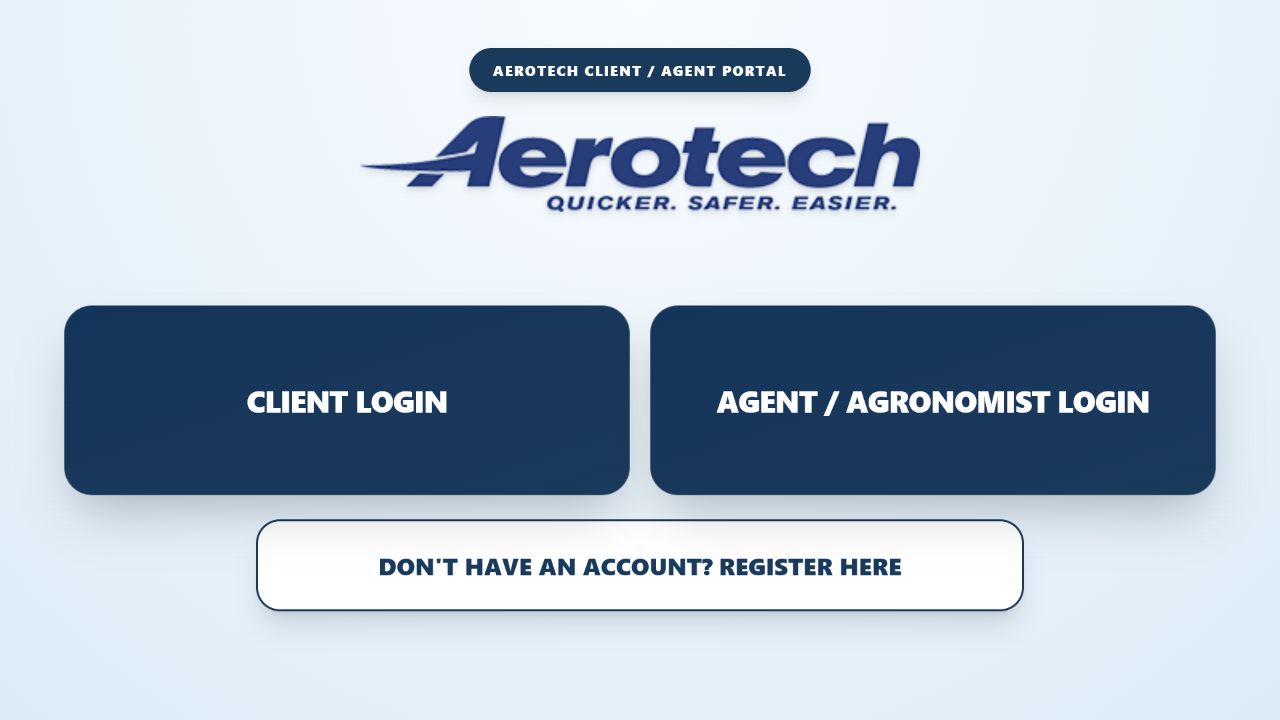
Client and agent portal login screen
Select Client Login or Agent / Agronomist Login. New users can register from the same screen.
  1. Set up the profileAdd client contacts and decide who receives invoices and completion advice. Completion advice may go to more than one person.
  2. Add farms and paddocksSave farm names, paddocks, crops, hectares and locations so later job requests are quicker and consistent.
  3. Attach mapsUpload KML or KMZ farm and job maps. Confirm the visible paddock area before submitting.
  4. Submit the job requestChoose the operation, products, rates, requested area, timing, airstrip information and job notes.
  5. Edit before schedulingChanges return to the office for review. Once accepted, the updated job details become the field source.
  6. Track the jobUse active jobs and history to see current status and completed work.
Agent access: agents can work with assigned clients and farms without sharing a client login.
Maps, farms and paddocks

Keep the farm profile accurate first. Job requests can then reuse saved paddocks while still allowing a job-specific map where required.

Invoice and completion recipients

Invoice recipients and job-completion recipients are separate. Select the correct invoice email and every person who should receive the client completion advice.

Editing a submitted job

Edit the existing request instead of creating a duplicate. The office can review the change before it is published to the field.

AeroOps Office

Run the complete operational day from request review to completion records and invoicing.
Open Office
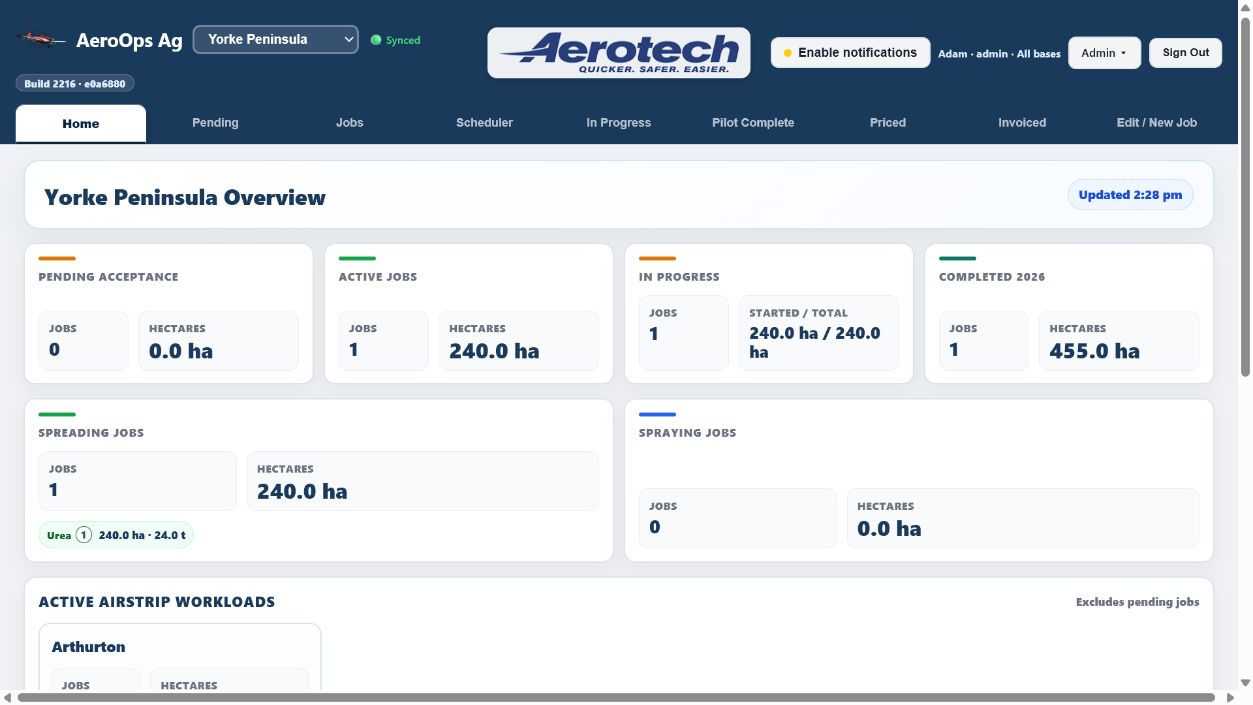
AeroOps Office overview dashboard
The Home overview brings pending work, active jobs, spreading and spraying totals, airstrip workload and upcoming days together.
  1. Review PendingAccept new requests, check client edits and confirm operation, hectares, product rates, map and billing contacts.
  2. Estimate time and cost in secondsThe automated estimator predicts flight time and operating cost using ferry distance to the nearest suitable airstrip, paddock shapes, application details, load planning and dead flying.
  3. Edit the job sourceUse Edit / New Job to correct the accepted job. Published field apps refresh from this current job record.
  4. Schedule and publishAssign the date, order, estimated start, pilots, aircraft, mixer and airstrip. Publish the day plan when ready.
  5. Monitor In ProgressFollow live loads, hectares, pilot state and estimated finish. Active work also updates the scheduler.
  6. Confirm Pilot CompleteCheck all pilot sessions, billable hectares, tacho times, weather, notes, products and mixer records before sending or printing.
  7. Price and invoiceChoose per hectare, hourly or manual pricing, confirm warnings, save pricing and prepare the client email from the local device.
Automated time and cost estimator

Get an accurate operating prediction within seconds. AeroOps factors in ferry travel to the nearest suitable airstrip, paddock area and shape, application and load requirements, productive flying and dead flying to estimate the job time and cost.

Scheduler and day planner

Drag jobs into the operating order, set the first start time, assign staff and aircraft, then publish. Actual starts and live finish estimates move the active job and help forecast the next start.

Multi-aircraft jobs

Leave each aircraft on the total remaining job unless a deliberate scheduled hectare assignment divides the work. Mixer load allocation then records which pilot and aircraft received each load.

Client and internal completion records

The client completion is a concise customer record. The AeroOps record keeps internal tacho times, flight sessions and mixer detail. Warnings appear when hectares or session totals need checking.

Records and search

Records default to a recent period for faster opening. Use filters and date ranges when older priced or invoiced jobs are needed.

Pilot & Mixer in the field

Both apps use private six-digit PIN access, saved job data and an offline outbox for temporary dropouts.

Pilot

View the current job, application plan, weather, live mixer progress, aircraft warnings and mandatory completion records.
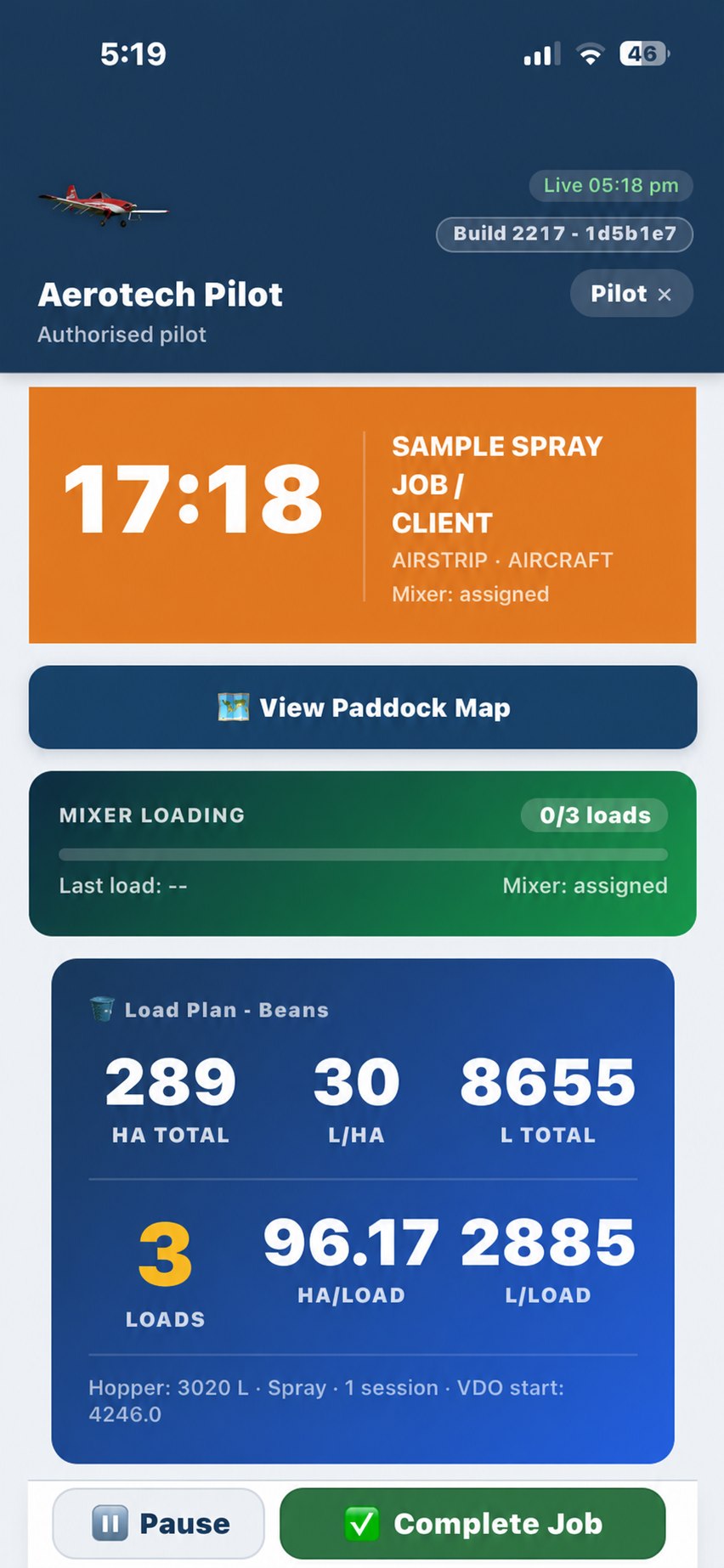
Pilot working page showing map access, live mixer load count and spray load plan
  1. Open today's jobsCheck the published plan, assigned aircraft, other pilots, job remaining, airstrip and upcoming maintenance time or hour warnings.
  2. Review the application mapSee paddock boundaries and powerlines, then use the suggested application direction for the fewest runs together with calculated block width.
  3. Start with current conditionsFetch weather automatically from the device location, then confirm starting tacho and the job swath width.
  4. Follow live load progressSee the load count recorded by the Mixer app, including shared-job and aircraft progress where applicable.
  5. Use live field controlsRequest fuel for the next load or send Stop Mixing / Hold when required.
  6. Pause or completeConfirm tacho stop and flown hectares. Spray jobs also require droplet size. Add pilot notes where needed.
  7. Check daily totalsIncomplete work, sessions and loads remain counted against the correct operating day.
  8. Open maintenance formThe maintenance button remains available even when there are no tacho sessions to prefill.
Billing: pilot-confirmed hectares are used for current work. Mixer load hectares do not replace the pilot completion hectares.

Open Pilot app

Mixer / Loader

Calculate every product and container, share live mixing across multiple mixers, time loads and reconcile remaining stock.
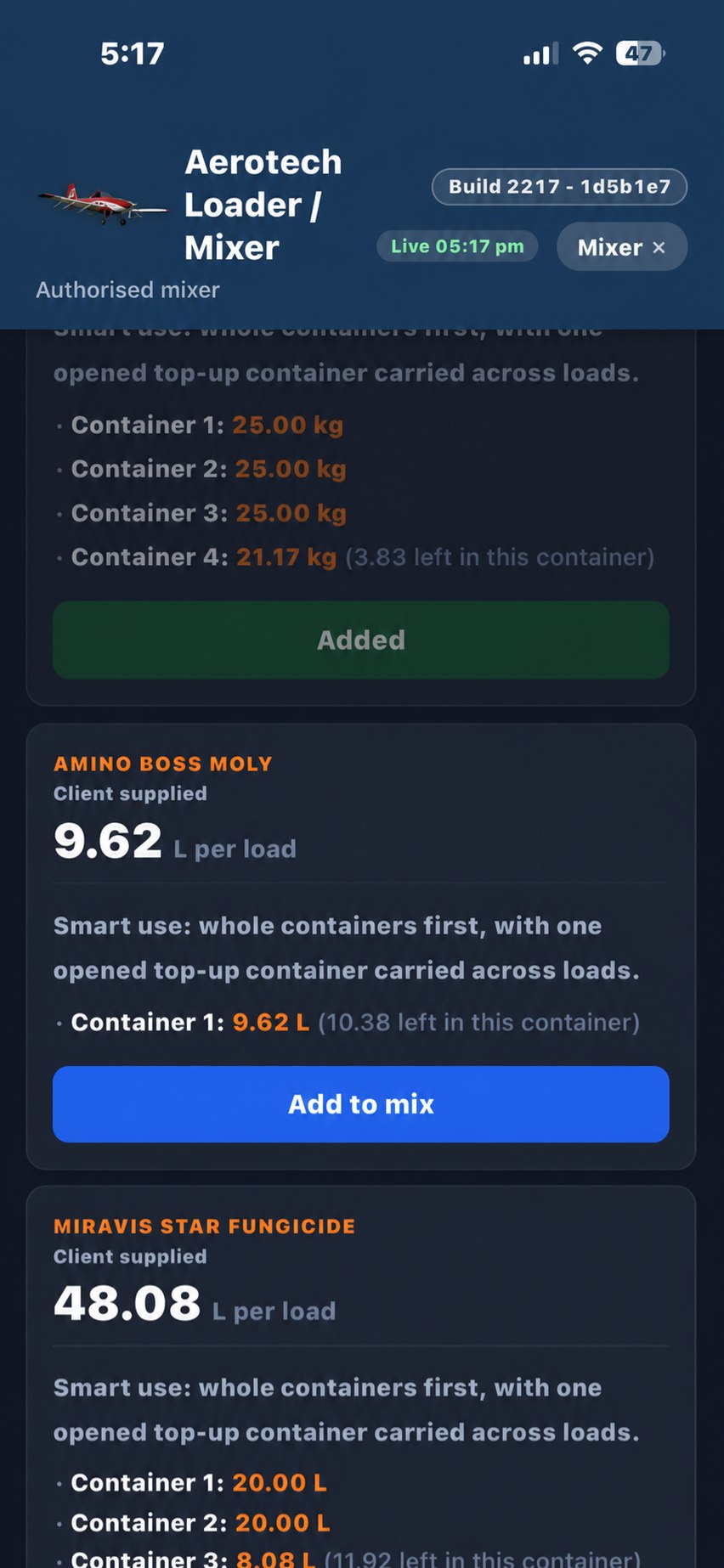
Mixer spraying page showing product quantities and smart container balances
  1. Open the job and directionsCheck job details, product rates, load plan and use the airstrip directions button when travelling.
  2. Complete the stock checkEnter each product, container size and quantity. AeroOps calculates the product needed for the job and tracks the amount remaining in every container.
  3. Work with other mixersMultiple mixers can prepare the same job. Product-added actions and progress update live across their devices.
  4. Select pilot and aircraftFor shared work, allocate each load to the aircraft that receives it. Progress separates total loads from your aircraft loads.
  5. Prepare and loadSee the exact product to use for the load and the container balance after use. For spreading, confirm the actual hopper weight.
  6. Watch load timingLoaded time and the live load timer remain visible. A warning appears when the normal application time is exceeded.
  7. Edit individual loadsUse Load Details to correct or remove the affected load with a warning. Product use, container balances and progress recalculate.
  8. Pause or completePause stops the active load timer. On completion, confirm the last load duration and review remaining job stock.
Container order: stock is consumed in the order entered while reusing any opened partial container until it is empty.

Open Mixer app

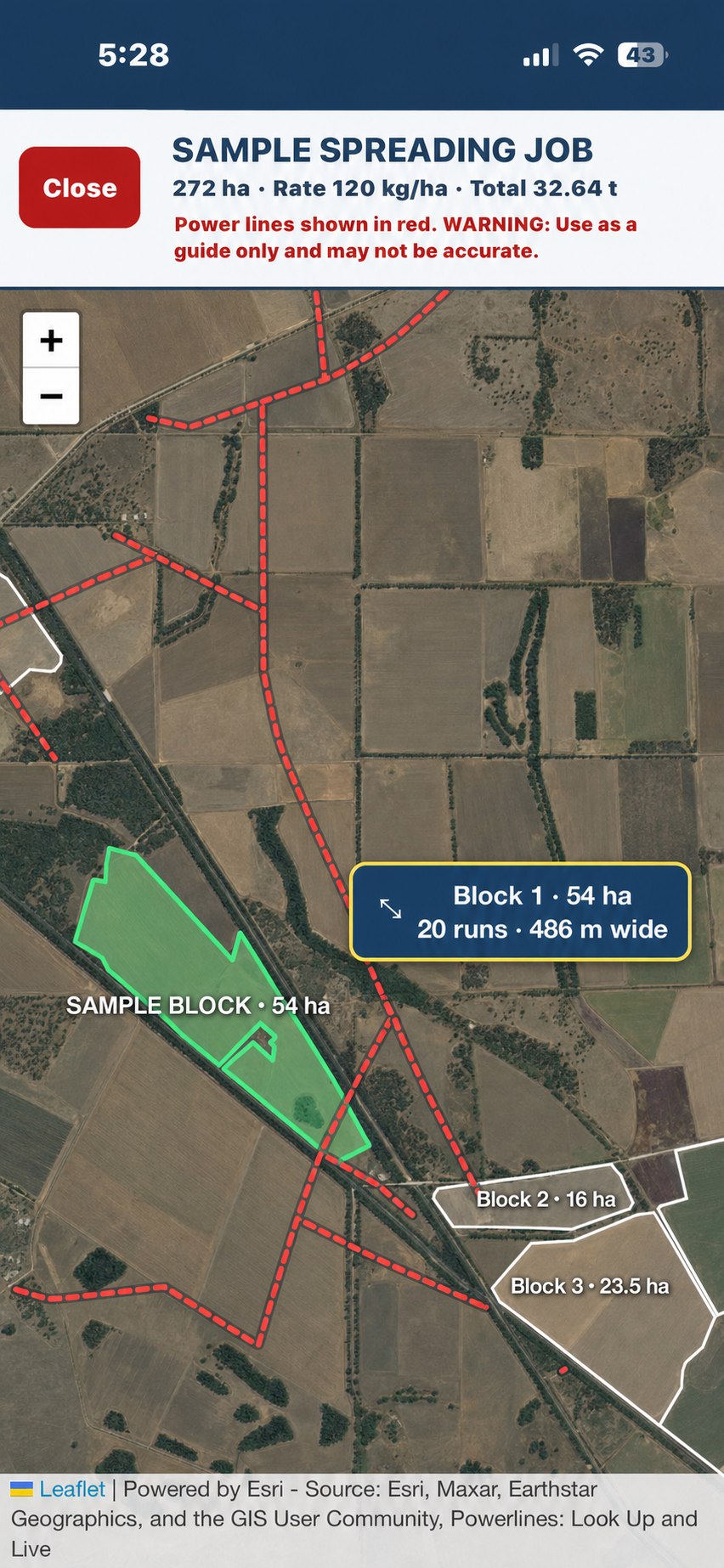
Pilot map showing powerlines, selected block, automatic application direction, run count and block width
Privacy-safe example map. Live customer properties remain inside the authorised apps.

Pilot map and automatic run plan

The flying screen keeps the key application information visible while the pilot reviews the job area.

  • Powerlines: shown as red dashed lines with a permanent accuracy warning.
  • Selected block: highlighted clearly against the other supplied paddock boundaries.
  • Least-runs direction: AeroOps suggests the application direction that produces the fewest runs.
  • Block calculation: the information box shows hectares, estimated runs and paddock width.
Pilot map, weather and application direction

The Pilot map carries the paddock information block and powerline warning. AeroOps can suggest the application direction that produces the fewest runs and show the calculated block width. Weather can be fetched from the pilot's current device location.

Live loads and aircraft maintenance warnings

Pilot load progress follows Mixer load records rather than a separate manual count. Aircraft cards also show upcoming maintenance warnings by remaining time or hours so the pilot sees them before starting work.

Product, container and stock accounting

Mixer calculations show product required for the job and load, the amount taken from each container, the balance left in each opened container and the remaining stock to reconcile when the job is completed.

Load timers and multiple mixers

Loaded time and active load duration stay visible, with a warning after the normal application time is exceeded. When more than one mixer works on a job, product-added updates and progress are shared live.

Offline use and reconnecting

The app shell and recent job data are saved for dropouts. Actions queue locally and replay when the connection returns. Keep the app open long enough to show a current synced status before signing out.

Refreshing current job details

Field apps refresh current settings and jobs after login and during live updates. If a job was edited by the office, return to the job list or refresh once connected to pull the latest accepted details.

Extra loads and extra hectares

Use Extra load from the active mixer workflow when the aircraft needs another load. Spreading extra hectares calculate additional product from hectares and the locked job rate.

Maintenance

Keep aircraft status, servicing, engine runs, defects and calibration history together.
Open Maintenance
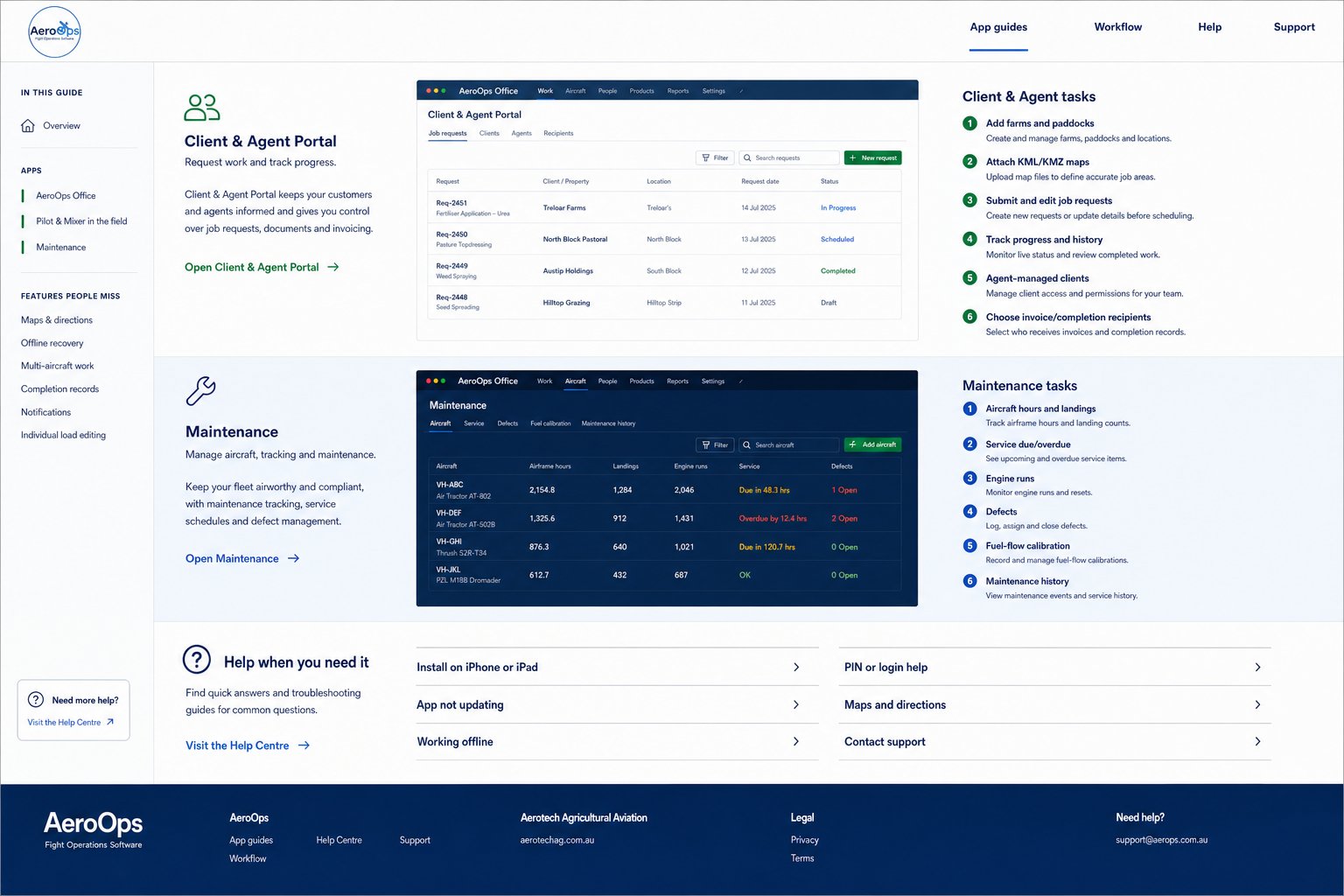
Illustrated AeroOps maintenance guide view
Illustrated guide view. Live aircraft records remain private inside the authorised Maintenance app.
  1. Review aircraft statusFilter by base, service condition, tasking or registration.
  2. Track hours and landingsCurrent tacho, recent flights and landing counts feed service monitoring.
  3. Watch service dueUse due, overdue and warning views to see work needing attention.
  4. Manage engine runsRecord and review engine-run activity and resets.
  5. Handle defectsPilot defect reports and photos are available for engineer review and closure.
  6. Keep calibration historyRecord fuel-flow calibration and review service and maintenance history.

Features people often miss

AeroOps has grown well beyond a job list. These are the useful controls that are easy to overlook during a busy day.

Maps and application direction

View paddock maps and powerlines in Pilot, use the least-runs application direction and block width, and open Google Maps directions to mixer airstrips.

iPhone notifications

Office users can enable pending-job notifications and see a base-specific pending count on the installed home-screen icon.

Live field progress

Pilots see Mixer load counts, while multiple mixers share product-added updates. Multi-aircraft jobs still separate total and aircraft progress.

Individual load editing

Edit or remove the affected mixer load from Load Details instead of undoing unrelated work. Product use and progress recalculate.

Completion checks

Warnings stop obvious hectare or session mistakes before client or internal completion records are sent or printed.

Warnings that prevent delays

Pilot shows upcoming aircraft maintenance time or hours. Mixer warns when a load exceeds the normal loading duration.

Help when you need it

Quick answers for the issues most likely to interrupt work in the field or office.

Install AeroOps on an iPhone or iPad

Open the app in Safari, use Share, choose Add to Home Screen, then open the new icon. For Office notifications, allow notifications when prompted and choose the correct base.

The app is showing an old build or old job details

Confirm the device is online, close and reopen the app from its home-screen icon, then use the visible refresh/update control if offered. Sign out and back in only after queued field actions show as synced.

Working during an internet dropout

Continue from the current job where the app allows it. AeroOps saves recent job data and queues supported field updates. When service returns, leave the app open until its live or synced status is current.

PIN or login help

Pilot and Mixer use a private six-digit PIN. Where more than one staff member shares a PIN, select the correct initials. Office, settings and Maintenance use authorised staff login.

Maps will not open or close on a phone

Open the map from the job card or active flying view. Use the visible Close control rather than the browser back button. Airstrip directions open separately in Google Maps.

A job, load or completion record does not look right

Do not create a duplicate. Check the current accepted job in Office, then review pilot sessions and mixer Load Details. Correct the affected source record and confirm warning messages before pricing or sending documents.

Still need help?Include the job number, app name, device and what happened.
Email support
No guide section matched that search. Try a shorter term such as map, invoice, fuel, load, offline or maintenance.

AeroOps by Aerotech

Flight operations software operated by SULLAIR AG PTY LIMITED.

Legal entitySULLAIR AG PTY LIMITED
ABN60 109 572 849